Your routers already report who talked to whom, and how much. The Flow add-on collects those reports and lets you ask them questions: which host, which port, which network, which provider.
Flow is an optional add-on. It is included from plan T3.
A recorded investigation
The real Flow Analyser, recorded on a demo network. Traffic jumps from about 1 Gbps to 9. Protocols shows it is mostly UDP, Top Talkers shows one source that was not there the hour before, and Search lists every flow it sent to one customer host. FishEye does not flag a flood like this by itself: this is someone looking. Addresses are made up.
Switch on flow export on the router: a short summary of each conversation it carries, who talked to whom, on which ports and how many bytes. Send it to FishEye on UDP port 2055 for NetFlow and IPFIX, or 6343 for sFlow; FishEye reads all three. The router shows up in the console within a minute. Nothing is added by hand.
2
FishEye keeps it
A small collector decodes the records and stores them next to FishEye. Every record is kept for a few days, and hourly summaries for much longer. You set both when you install.
3
You ask questions
Pick a time window, then look at it by host, protocol, network or provider. Search any flow. Compare with the period before.
What you can ask
One question at a time.
Each of these is a tab in the Flow Analyser. The screens below are the real console on a demo network; every address and provider name is made up.
Top Talkers
See who sent it
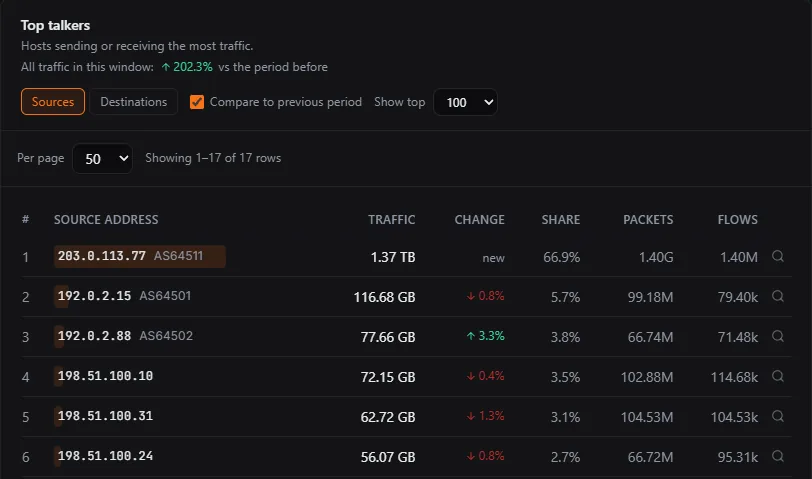
Top Talkers ranks the hosts that send or receive the most traffic in the window you pick. Tick Compare and every row shows its change against the period just before. A source that was not there at all is marked new. The magnifier on any row opens that host’s flows.
The first source is marked new: it was not sending in the hour before.
Protocols & Ports
Split it by protocol and port
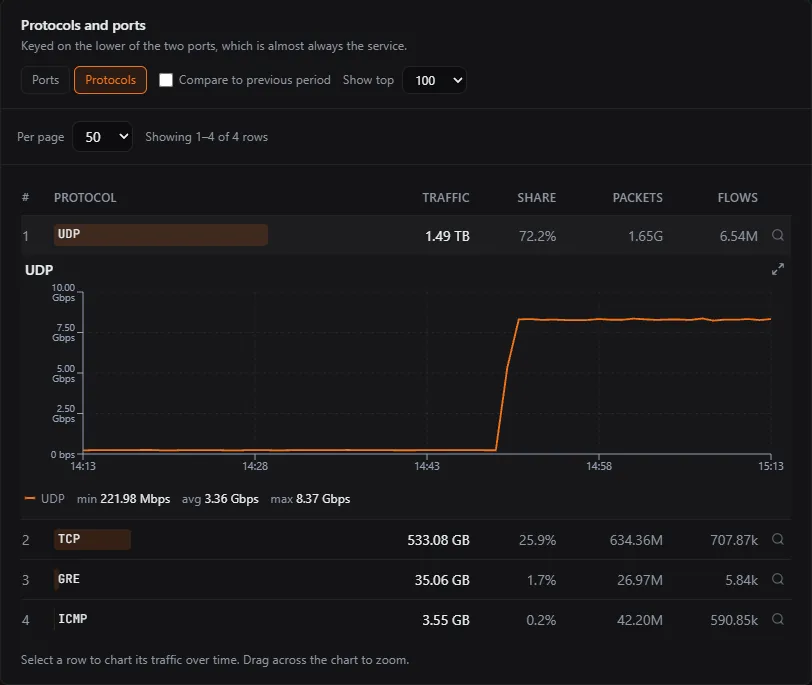
This tab shows what kind of traffic it is. Protocols gives TCP, UDP and the rest. Ports names the service, using the lower of the two port numbers, which is almost always the service. Click a row to chart it over time, and drag across the chart to zoom in.
UDP opened: it jumps from a few hundred Mbps to more than 8 Gbps.
ASNs
Name the network
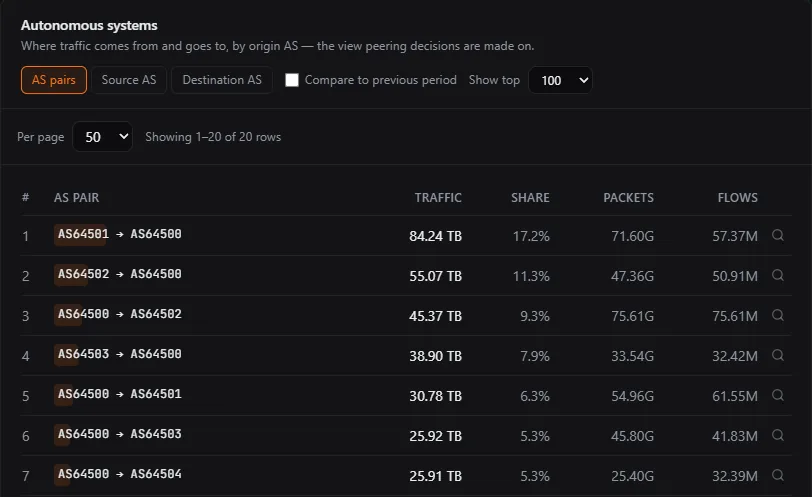
Every network on the internet, a carrier, a cloud company or your own, has a number: its ASN. ASNs groups traffic by the network at each end, so you see which carriers and companies it comes from and goes to. AS pairs shows both ends of each conversation. Source AS and Destination AS show one end.
AS pairs over 30 days. In this demo, AS64500 stands for the network itself.
Routing
Name the provider that carried it
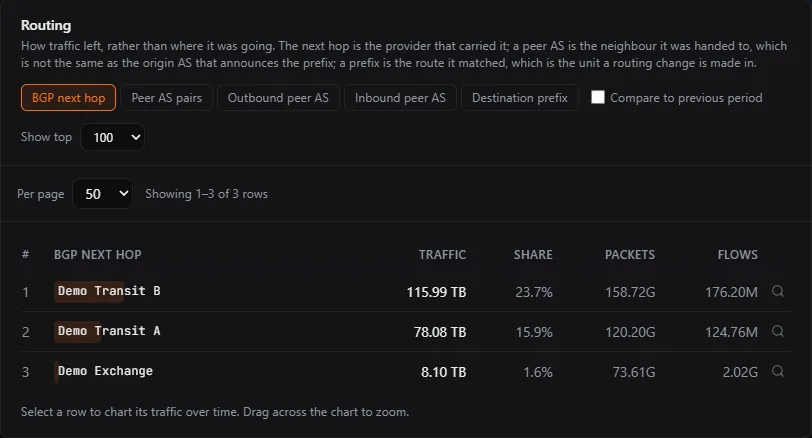
Routing shows how traffic left your network, not where it was going. FishEye groups it by the neighbour router each packet was handed to (the BGP next hop) and names each one from PeeringDB, the public register of networks, so you read a provider’s name instead of an address. You can type your own name instead.
It needs your router to put BGP information in its flow export. Without it, every other tab still works.
Traffic by BGP next hop over 30 days. The provider names are made up.
Costs
Check the transit bill
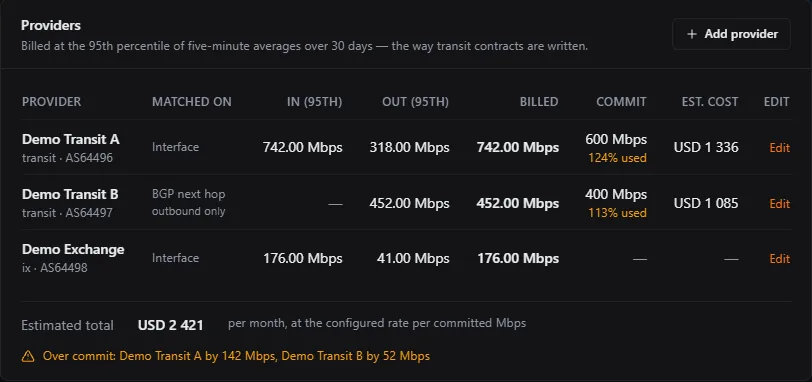
Add each provider with the commit you pay for and the price per Mbps. Costs then shows the 95th percentile in and out, the figure most carriers bill on: drop the busiest 5 percent of the month’s five-minute readings, and the highest one left is what you pay for. Beside it are the estimated cost and a warning when you are over commit. FishEye charges the larger of the commit and the measured rate, the way transit contracts do.
Below it, Peering candidates lists the networks you reach over paid transit, with their share. A high share is a candidate for peering, not a conclusion.
This is an estimate, not the invoice. Sampling, Ethernet overhead and where the carrier’s meter sits all make small differences. A provider matched by next hop alone shows outbound traffic only; match it by router port to see inbound too.
Three made-up providers over 30 days. Transit B shows outbound only, because it is matched by next hop.
Search
Find any flow
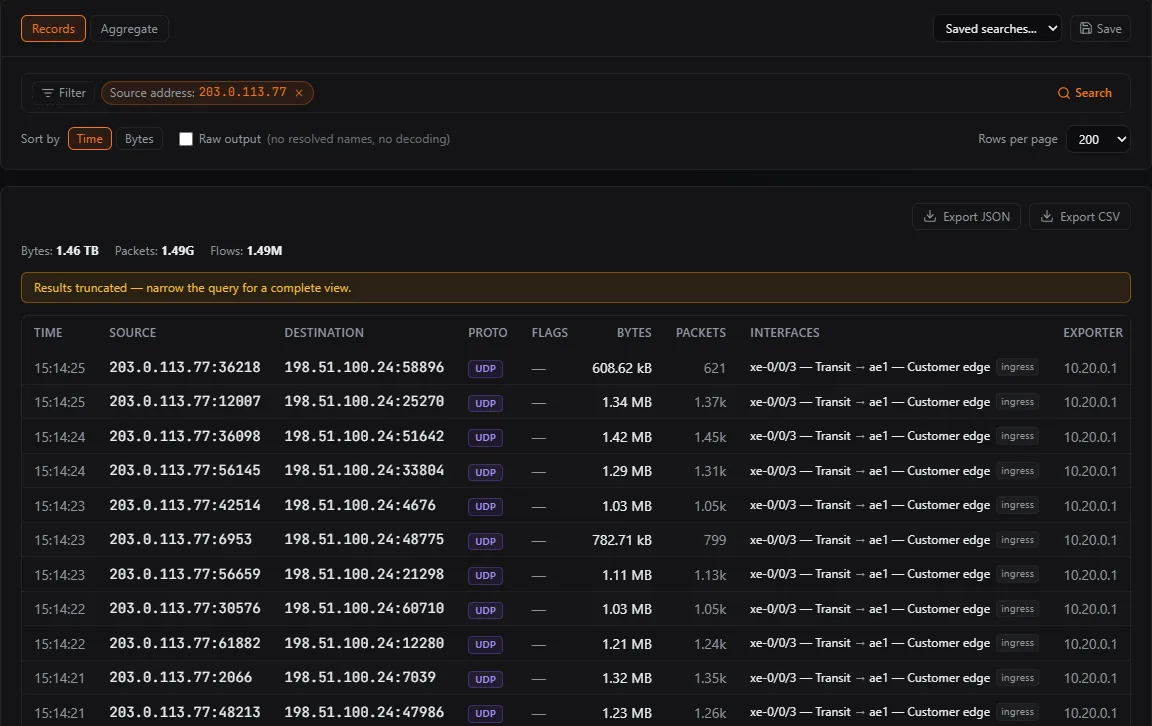
Search reads the individual flow records. Filter by address or network, port, protocol, ASN, TCP flags, interface or next hop, and see every flow that matches, newest first, with the interface it crossed. Switch to Aggregate to group results by up to four fields. Save a search, or export it as JSON or CSV.
Individual records are kept for the raw retention you set, three days by default. For longer windows, an aggregate search is answered from the hourly summaries, as long as the filters you chose exist there.
Every flow one source sent to one customer host. Search opens from the magnifier on any row in the other tabs.
Reports
Get the week on one PDF
By default, early each Monday (UTC), FishEye writes a PDF of the week that just closed, and keeps it for a year. It holds the week’s totals and busiest hours, a day and hour heatmap, top sources, destinations and conversations, the protocol mix, networks, BGP next hops and provider percentiles. Totals and top tables are compared with the week before.
If FishEye had data for less than the whole week, the PDF says so on the page, so a quiet week is not confused with a missing one. It is not emailed: you download it from the Reports tab.
Also in the tab bar: Overview, the total at a glance; Conversations, pairs of hosts; Exporters, which routers are sending and whether any need a template fix; Insights, a flow diagram of who talks to whom and a day and hour heatmap; and Map.
Who it is for
Anyone who has to explain a full link.
You start from a question and look. FishEye does not decide for you which traffic is a problem.
An ISP
A customer’s line is full: find which of their hosts did it, and talk to them. Before the transit invoice arrives, read the 95th percentile for each provider and see which networks you pay to reach.
An enterprise
The office internet feels slow: see which machine and which service is using the link, and whether it was doing the same yesterday. Check it is not a backup that started in the wrong hour.
A data centre
A server is under load: see who is sending to it, on which ports, and since when. List every flow a host sent while the individual records are still kept.
Capacity
How much can it take?
Tested at 10,000 flow records a second for ten minutes with nothing dropped, and a 160,000-a-second burst. Beyond that, talk to us.
A flow record is the router’s summary of one conversation. That test ran on a lab machine with generated traffic, not on a customer network.
FishEye reads NetFlow v5 and v9, IPFIX and sFlow v5. It tells the formats apart from the packet itself, so either port accepts any of them. So far, the real routers sending to FishEye have all sent NetFlow v9. The other formats are supported and tested on built test data, but we have not yet seen them from a real router.
For NetFlow v9 and IPFIX, set a short template refresh on the router, so FishEye can decode records again quickly after a restart.
What if my router samples?
Where a router says how it samples, FishEye scales the numbers up for you. If a router samples without saying so, you set its rate on the Exporters tab. Under 1 Gbps, sampling is not needed. On faster links, sampling at the router is also how you keep individual records for longer.
How long is flow data kept?
You set it when you install. Individual flow records are kept for a few days (three by default). Hourly summaries are kept much longer (400 days by default). A question about last month is answered from the summaries, at hourly detail.
Will it alert me to a DDoS by itself?
No, not yet. FishEye does not raise an alert from flow data today. You investigate it as in the video: notice the jump, see the protocol, find the source, list its flows.
Does it change my routing?
No. FishEye only reads the flow records your routers send. It does not take part in BGP, needs no BGP session, and never changes a route. It watches routing; it does not touch it.
Is it separate from the rest of FishEye?
Yes. It is an optional add-on, included from plan T3. A FishEye server that has not installed it is unaffected. It adds a small collector and a second database, ClickHouse, on the same server. Flow records never go into FishEye’s main database.