For the NOC

From the first alert to the fix.

An outage asks the team watching the network, the NOC (network operations centre), the same questions every time. Here is what FishEye shows for each one, and what to do next. Jump to the one you have.

A fault, step by step

The real FishEye console, recorded on a demo network: a target slows down, the problem lands on the NOC page, Path Visualization names the hop where the latency starts, and the target recovers. Host names and addresses are made up.

Dashboard · Targets

Is it down, or just slow?

Many monitoring tools check once every 5 minutes, so a 40-second spike can fall between two checks and never show. FishEye pings every target every 6 seconds by default (you can set 1 to 60), so that spike is seen, not missed.
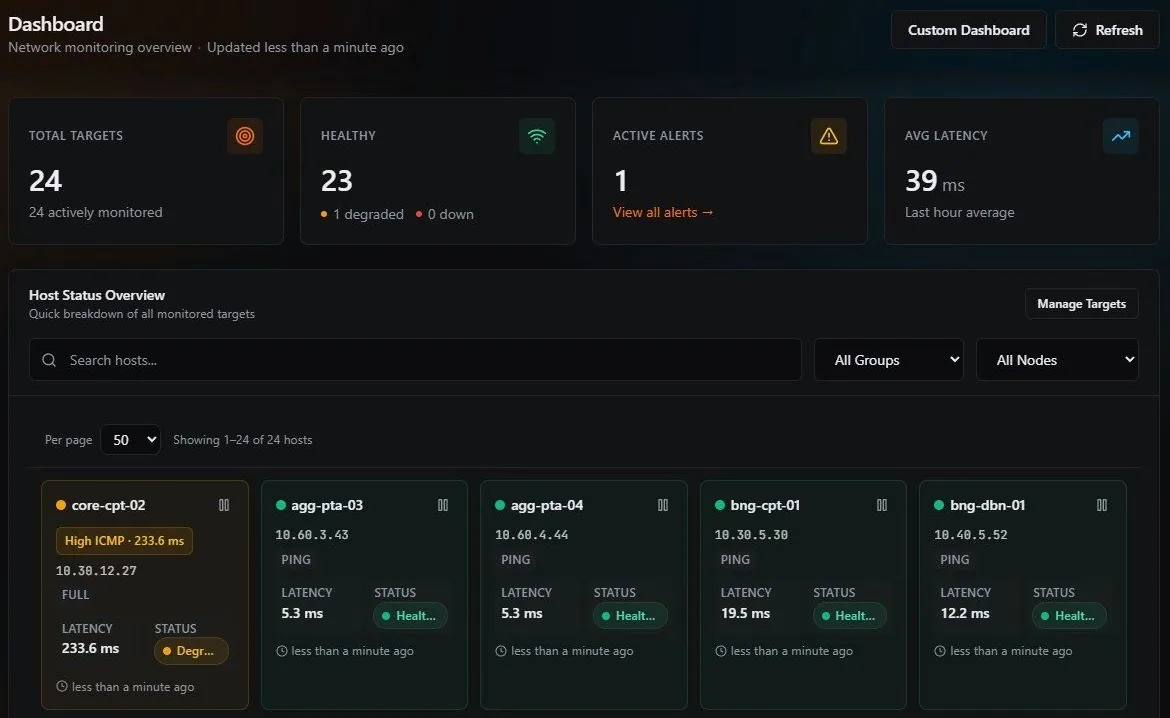
The FishEye dashboard on a demo network: 24 targets, 23 healthy and 1 degraded. The degraded target, core-cpt-02, is marked high ICMP latency at 233.6 ms.
One target slips to 233.6 ms and turns degraded, with the reason on its card. Demo network, made-up hosts.

What FishEye shows

  • A status for every target, stamped each minute from all of that minute’s replies, not from one reply on its own: healthy, degraded or down, with the reason named: unreachable, high latency, packet loss, or ping replies blocked while the destination still answers a path trace.
  • Thresholds of 100 ms and 10% loss by default, set per target when a link needs its own.
  • A target with no recent data reads unknown, never healthy, so a stopped collector cannot hide an outage.

What you do next

  • Open the target: latency, loss, jitter (how much the delay varies) and a call-quality score (MOS, from 1 for bad to 4.5 for excellent) per minute, with drag-to-zoom.
  • Check its customer and service: FishEye shows who is attached to what is failing.
Probe nodes · Endpoint agents

Is it us, or the far end?

One vantage point cannot tell a local fault from a remote one. FishEye measures from several.

What FishEye shows

  • Probe nodes: small Linux agents at your other sites that repeat the master’s ping, traceroute and DNS checks and dial out to it over HTTPS.
  • Windows agents on workstations: gateway, internet and master round trips, DNS latency, Wi-Fi signal and retransmits, as the user’s machine sees them.
  • A latency allowance per probe node, for a site whose path to the network is known to be longer.

What you do next

  • Compare the vantage points: if every one sees it, the fault is near the target; if one does, look at that site.
  • For a single user’s complaint, read their workstation’s Wi-Fi and gateway before the core.

Path Visualization

Where on the path?

FishEye names the network where the latency starts. It runs a traceroute, which lists every router between you and the target, twice a minute from the master and every few minutes from each probe node, and keeps the history so you can scroll back through it.

What FishEye shows

  • A callout in plain words: “Latency rises by X ms between hop A and hop B and stays up.”
  • Every hop with its network (its ASN, the number that identifies the operator) and location, and a location is kept only if the hop’s own round trip makes it possible.
  • Route changes recorded once three runs confirm a route not used in the last seven days, with an optional path-change alert.
  • A router that is slow to answer pings flagged as such, not blamed: that is not the same as a slow path.

What you do next

  • Find the hop where the latency appears and stays for every hop after it: that network is where to ask.
  • Scroll the Time Machine back to the route before the change, and send the provider both.

More on the Path page

Flow Analyser

What filled the link?

FishEye shows which conversation filled the link. The optional Flow add-on reads NetFlow (v5 and v9), IPFIX and sFlow, the traffic summaries your routers send of who talked to whom.

The real Flow Analyser, recorded on a demo network. Traffic jumps from about 1 Gbps to 9. Protocols shows it is mostly UDP, Top Talkers shows one source that was not there the hour before, and Search lists every flow it sent to one customer host. FishEye does not flag a flood like this by itself: this is someone looking. Addresses are made up.

Tested at 10,000 flow records a second sustained for 10 minutes with no drops, and 160,000 a second in a burst, in a lab test with generated traffic.

What FishEye shows

  • Total traffic for any window inside the retention you set, then the same traffic split by protocol, port, host, network or conversation.
  • A comparison with the period before: each row’s change, and new for a source that was not there.
  • Search flows by host, network, port and protocol, and the top talkers for the same window.
  • Which provider each flow left through, from the neighbour network it was handed to (its BGP next hop), with providers named from PeeringDB.
  • The 95th percentile (the figure most carriers bill transit on), and a weekly PDF report that says how much of its week it saw.

What you do next

  • Name the transfer that filled the link, and talk to whoever owns it.
  • If you find one unknown source sending to one host, take the address and the flows to your upstream to filter it.
  • See whether it is a one-off or a pattern before you buy more capacity.

More on the Flow page

SNMP · Inventory

Is the hardware failing?

Any router or switch that reports on itself over SNMP (v1, v2c or v3) works for interfaces. Vendor templates add more: optic light levels, as a trend, on MikroTik and IP Infusion OcNOS.

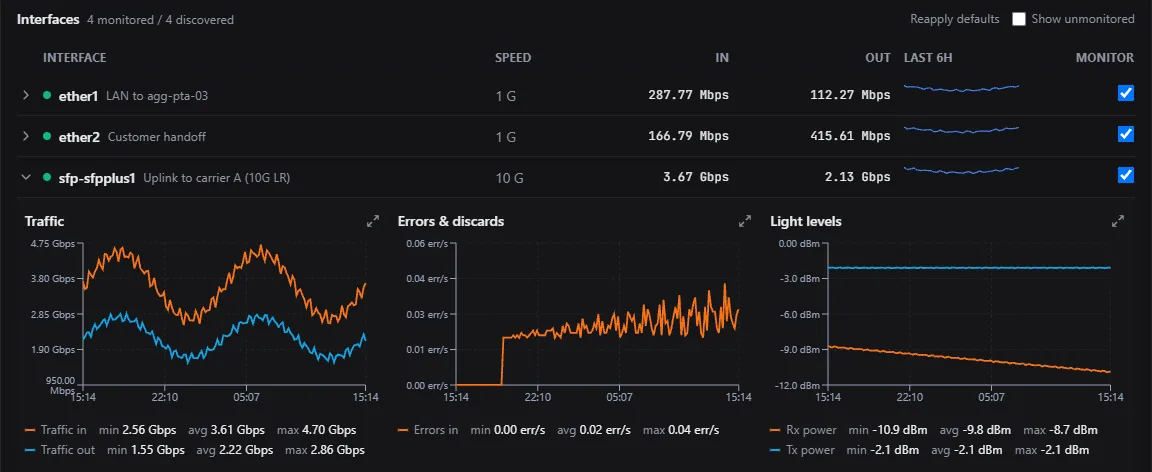
A FishEye interface table on a demo MikroTik router. The 10G uplink is expanded: traffic in and out, errors rising, and the optic's received light level falling from about minus 8.7 to minus 10.9 dBm over a day.
The light level of this uplink’s optic is falling: swap it in a maintenance window, not in an outage. Demo device, made-up data.

What FishEye shows

  • Interface traffic, errors and status for every port it discovers, on any SNMP device, and BGP peer state: whether each session with a neighbour network is up.
  • Transceiver light levels (Rx and Tx), module temperature and supply, as a trend, on MikroTik and IP Infusion OcNOS.
  • A few standard traps (link down, BGP down, restart) that raise and clear alerts.
  • The state of MPLS paths (LSPs, the pre-set routes carriers use across their core) for Junos and OcNOS, read over SSH where the devices do not expose it over SNMP.

What you do next

  • Watch an optic’s light level fall and swap it in a maintenance window, not in an outage.
  • When a BGP session drops, see when it stopped working and with which neighbour.

DNS Deep Dive · Targets

Is it DNS, or the web application?

Reachability is not the whole story. FishEye checks the services that ride on it.

What FishEye shows

  • DNS checks (name lookups) of a resolver you run, for a domain you care about: down only after three failures in a row, and NXDOMAIN (“no such name”) counted as an answer, not a failure.
  • HTTP checks reported beside a target’s status, so a web application failing on a reachable host is its own alert.
  • DNS Deep Dive on demand: resolvers compared, DNSSEC (whether answers are signed against tampering), delegation, DNS over HTTPS. And the biggest packet each route can carry in one piece (path MTU), checked every six hours.

What you do next

  • If DNS fails while ping is healthy, the network is fine: take it to whoever runs the resolver.
  • An HTTP failure on a healthy host goes to the application team, with the time it started.

NOC · First Line Check

Is the device dark, or is the path to it broken?

First Line Check answers the first question a NOC asks about a silent device. It is optional and off by default.

What FishEye shows

  • FishEye logs in to a neighbour of the silent device, runs a fixed read-only runbook, and attaches one verdict to the alert: device dark, device powered, far-end fault, peer unreachable, and so on.
  • It never acknowledges an alert itself, and refuses any command outside its runbook. RouterOS is the runbook vendor today.

What you do next

  • Dispatch to site for a dark device; chase the carrier for a far-end fault.

NOC · Settings

Who needs to know?

One place for every open problem, and a way to tell the right people.

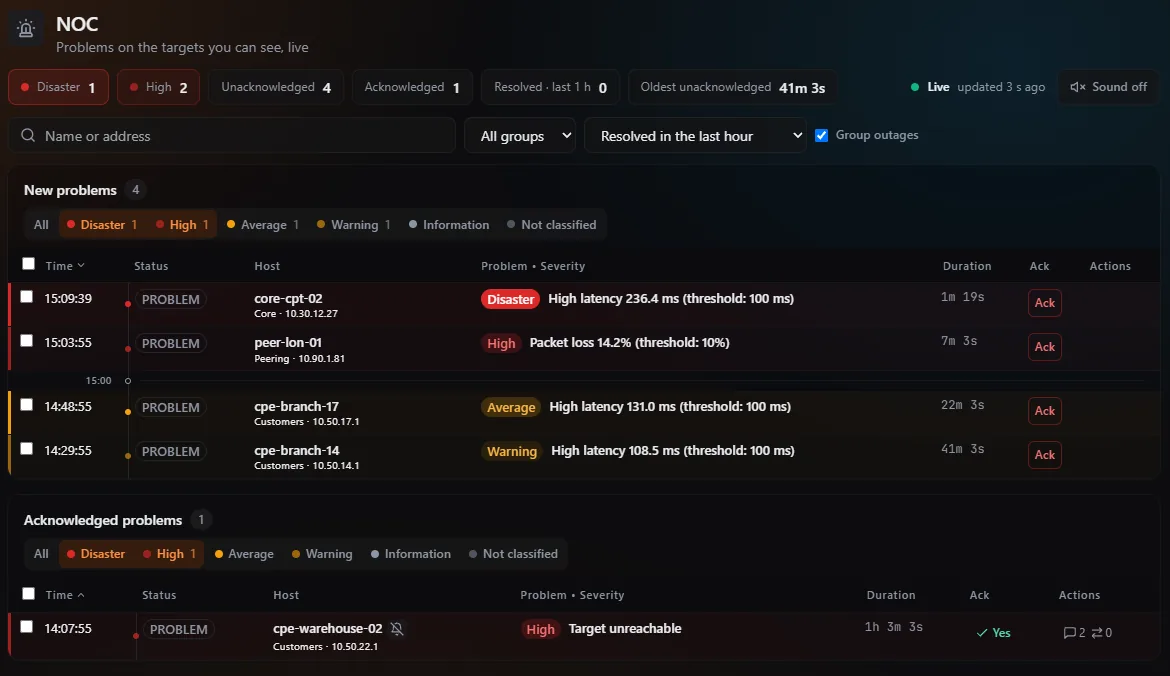
The FishEye NOC page on a demo network: four new problems from Disaster down to Warning, each with its age and an Ack button, and one acknowledged problem in its own panel.
Every open problem in one list, with its severity and age; acknowledged ones sit in their own panel. Demo network.

What FishEye shows

  • A NOC page with new and acknowledged problems; acknowledge, comment, change severity or close, with the history kept. A wall view for the screen on the wall.
  • Alerts to Telegram, email or a webhook (Slack, Discord, Teams or your own, optionally signed), each with a “customers affected” line.
  • A storm folded into one message per channel, and maintenance windows that silence notifications while keeping problems visible.

What you do next

  • Acknowledge to stop repeats while you work; the recovery notice still goes out.
  • Plan the change in a maintenance window, so the team is not paged for work you announced.

SLA

Did we keep the promise?

Did we deliver the uptime we promised? An SLA (service level agreement) report answers it per customer and service, built from every status change rather than samples.

What FishEye shows

  • Monthly availability for each service, over all hours and over business hours, with South African public holidays built in.
  • Maintenance and unmonitored time left out of the sum, so a dead collector never counts as hours of uptime.

What you do next

  • Open a customer’s month and see the availability, the outages behind it and which targets were missed.

Bring us your hardest outage.

Tell us how your NOC works today, and we will show you where FishEye fits.

Talk to us